
Table of Contents
- Introduction
- Prerequisites
- Common Preparation Steps
- SONiC manual installation
- SONiC DHCP-based installation
- Documentation
- Useful links
Introduction
This article explains how to install and deploy SONiC on network switches using ONIE (Open Network Install Environment). SONiC can be installed using several ONIE-supported methods:
- Local file installation via ONIE
- USB installation via ONIE
- Network-based installation (HTTP, FTP or TFTP)
- DHCP-based installation
This guide covers:
- Manual SONiC installation via ONIE
- DHCP-based SONiC installation
Prerequisites
Before starting the installation, ensure you have the following:
- Console terminal software: PuTTY ,Teraterm, SecureCRT, etc.
- SONiC image file: compatible with switch platform and ASIC.
- Serial Console cable: Provided with the device.
- Workstation with a static IPv4 address configured (manual installation).
- HTTP and DHCP server (DHCP-based installation).
- SSH access to a remote server HTTP and DHCP (DHCP-based installation).
- Basic familiarity with Linux CLI commands.
Topology
Manual installation
DHCP-based installation
Common Preparation Steps
Obtain the SONiC Image
Download the appropriate SONiC image for your platform from the official SONiC repository or your vendor’s support portal.
Ensure the image file is accessible from your workstation and compatible with switch platform and ASIC.
Step-By-Step Guide
SONiC manual installation
STEP 1: Enter the ONIE install mode
If no OS is present, ONIE starts automatically ONIE: Install OS.
STEP 2: Disable ONIE Service Discovery
ONIE automatically starts Service Discovery, which may interrupt manual installation.
Use the following command to disable it:
ONIE:/ # onie-stopThis prevents ONIE from searching for installation images automatically.
STEP 3: Configure Management IP Address
By default, ONIE attempts to obtain an IP address via DHCP.
To configure a static IP address manually:
ONIE:/ # ifconfig eth0 <ip address> netmask <enter netmask>Verify connectivity to your workstation using ping command.
Example:
STEP 4: Obtain the SONiC Image
Follow the steps described in Common Preparation Steps -> Obtain the SONiC Image.
STEP 5: Transfer and install SONiC image
Copy the SONiC image from your workstation to the switch using SCP:
ONIE:/ # scp <username>@<ip_address>:</path_to_image/sonic-image.bin> <destination_path>Install SONiC from the local file:
ONIE:/ # onie-nos-install <image_name.bin>Example:
If the installation is successful, the device will reboot automatically and boot-up into SONiC.
Example:
STEP 6: Verify the SONiC installation
Follow the steps described in Verify the SONiC installation.
SONiC DHCP-based installation
This method allows ONIE to automatically download the SONiC installer.
STEP 1: Obtain the SONiC Image
Follow the steps described in Common Preparation Steps -> Obtain the SONiC Image.
STEP 2: Place Image on HTTP Server
STEP 3: Configure DHCP Server
Provide the installer URL using DHCP option 114.
Example:
option default-url "http://192.168.1.200/path/sonic-image.bin";
STEP 4: Enter the ONIE install mode
ONIE obtains IP via DHCP and downloads the installer automatically.
If a valid installer file can be retrieved from the default-url, the installation will begin automatically.
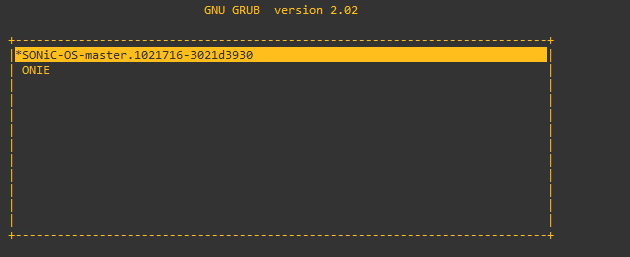
If the installation is successful, the device will reboot automatically and boot-up into SONiC.
Example:
Verify the SONiC installation
After the installation completes and the system boots into SONiC, verify the installation using:
show version
show interface status
Example:
Documentation
GitHub - sonic-net/SONiC: Landing page for Software for Open Networking in the Cloud (SONiC)
Congratulations!
Your SONiC installation is now complete.
If you have any questions related to this article, feel free to reach out to our technical support team.
Happy Networking!
Useful links
If you want to explore more topics, be sure to check out our other guides, including:
How to add user and change the password in SONiC
How can I set up a console connection to Edgecore Open Networking switch?
Where to download the SONiC Virtual Switch (VS) community pre-built image?
For more free resources, visit:
https://stordis.com/free-resources/
Still have questions? You can find more answers in our full FAQ - just follow the link below.
Comments 0
Comments
Please sign in to leave a comment.